Why Your Phone Is Half-Dead Every Morning — And the Settings You Need to Change Tonight
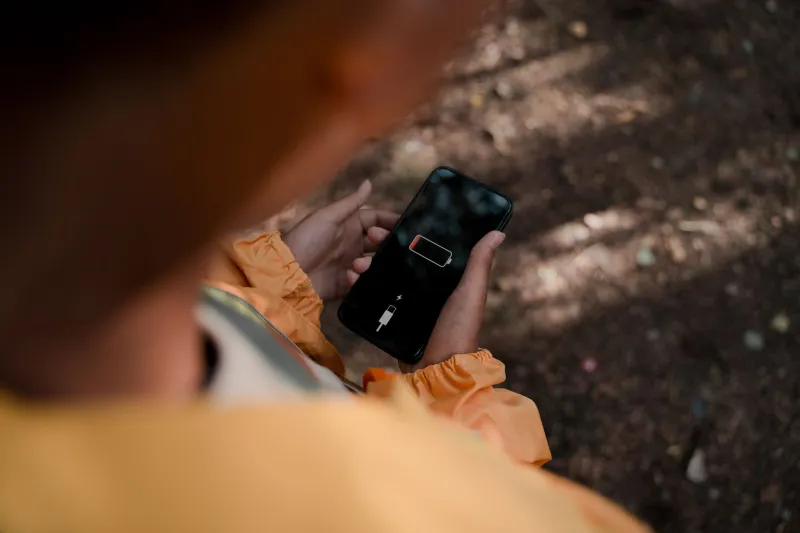
You plug your phone in at 100 percent, wake up eight hours later, and find it sitting at 62 percent — even though you never touched it. If that scenario sounds familiar, you are not alone, and the culprit is almost certainly not a failing battery. In most cases, it is a collection of background processes running silently in the dark, each one small on its own but devastating in aggregate.
This guide offers a methodical, step-by-step approach to identifying and eliminating the hidden battery killers on both iOS and Android devices. No third-party apps required. No technical expertise assumed. Just a smarter relationship with the device you already own.
Understanding Why Overnight Drain Is Different
Daytime battery consumption is intuitive — you use your phone, the battery depletes. Overnight drain is harder to diagnose precisely because it happens without your involvement. The phone appears to be sleeping. It is not.
Modern smartphones are designed to remain partially active at all times. They receive push notifications, sync email and calendar data, update apps, report location data to various services, and ping nearby networks — all while the screen is off. Apple and Google both engineer these behaviors to improve user experience, but the default settings are calibrated for convenience, not battery conservation. Changing that balance is entirely within your control.
Step 1: Run a Battery Usage Audit
Before changing anything, establish a baseline. Both major operating systems provide detailed battery consumption reports that most users never consult.
On iOS (iPhone): Navigate to Settings → Battery. Scroll down to see a breakdown of battery usage by app over the last 24 hours and the last 10 days. Tap the clock icon to toggle between percentage consumed and actual time spent on screen versus time spent active in the background. That second column — background activity — is where overnight drain hides.
On Android: The path varies slightly by manufacturer, but the general route is Settings → Battery → Battery Usage. Look for apps that appear on the list despite you not actively using them. Social media platforms, email clients, and mapping apps are frequent offenders.
Make a note of any app consuming more than five percent of your battery in the background. These are your primary targets.
Step 2: Audit Background App Refresh
Background App Refresh is one of the single largest contributors to overnight drain on iPhones. It allows apps to update their content even when you are not using them — so your news app has fresh headlines the moment you open it, for example. Useful in theory. Expensive in practice.
On iOS: Go to Settings → General → Background App Refresh. You can disable it entirely, or — more strategically — turn it off on a per-app basis. Apps like weather, news, and social media rarely need to refresh at 3 a.m. Turn them off. Keep it enabled only for apps where real-time updates are genuinely critical, such as a messaging app you use for work.
On Android: The equivalent feature is called "Background Data" or "Unrestricted Data Usage" depending on your device. Navigate to Settings → Apps, select an individual app, tap Mobile Data & Wi-Fi, and toggle off "Allow background data usage." On Samsung devices, you can also enable "Put unused apps to sleep" in Battery settings, which automatically restricts background activity for apps you haven't opened recently.
Step 3: Rein In Location Services
Location tracking is among the most power-intensive background behaviors a smartphone engages in. GPS hardware draws significant current, and many apps request continuous location access when occasional or "while in use" access would serve the same purpose.
On iOS: Visit Settings → Privacy & Security → Location Services. Review every app listed. Change any app set to "Always" to "While Using" unless you have a specific reason for continuous tracking — navigation apps and some fitness trackers are legitimate exceptions. Also disable "Precise Location" for apps that don't require GPS-level accuracy, such as weather apps that only need your city.
On Android: Go to Settings → Location → App Permissions. The same logic applies. Look specifically for apps set to "Allow all the time" and question whether that permission is genuinely necessary. Most are not.
Step 4: Manage Push Notifications and Email Fetch
Every push notification requires a brief network transaction — your phone wakes, connects, receives data, and processes it. Multiply that by dozens of apps sending notifications through the night and the cumulative drain becomes significant.
On iOS: Go to Settings → Notifications and review which apps have notification permissions. Disable notifications entirely for any app that doesn't require real-time alerts. For email specifically, navigate to Settings → Mail → Accounts → Fetch New Data and switch from "Push" to "Fetch" — or better yet, set it to "Manually" for accounts you only check during the day.
On Android: Open Settings → Notifications → App Notifications and audit each app. Additionally, in your email client's settings, look for sync frequency options and increase the interval from every 15 minutes to every hour, or disable overnight sync entirely.
Step 5: Enable the Right Power Mode at Bedtime
Both iOS and Android offer low-power or battery-saver modes, but many users only activate them when the battery is already critically low. Using them proactively overnight — when you don't need any background functionality — is a straightforward way to preserve charge.
On iOS: Enable Low Power Mode via Settings → Battery. This disables background refresh, reduces visual effects, and pauses automatic downloads. You can also add it to your Control Center for one-tap access each night.
On Android: Battery Saver mode (found in Settings → Battery) operates similarly. Some Android devices, including Google Pixel phones, offer a "Bedtime mode" within the Digital Wellbeing settings that can be scheduled to activate automatically at a set time each night.
Scheduling these modes to activate at your typical bedtime removes the need to remember — and ensures the savings happen consistently.
Step 6: Check for Rogue Apps and Recent Changes
If your overnight drain worsened suddenly, a recently installed or updated app is likely responsible. Cross-reference your battery usage report with your app install history. A poorly optimized update can turn a well-behaved app into a significant drain source overnight.
For persistent cases, consider uninstalling and reinstalling the offending app, or replacing it with a lighter alternative. Many social media platforms, for instance, consume far less battery when accessed through a mobile browser rather than a native app.
What to Expect After Making These Changes
Users who complete a full audit of the settings described above typically report overnight drain dropping from 20 to 40 percent down to five to ten percent — a dramatic improvement that extends the usable lifespan of each charge cycle. Over months and years, reducing unnecessary charge cycles also slows battery degradation, meaning the phone retains its capacity longer.
The adjustments described here take less than thirty minutes to implement. The return — a phone that wakes up nearly as charged as it went to bed — compounds every single night. That is the kind of optimization that doesn't require buying anything new. It just requires knowing where to look.