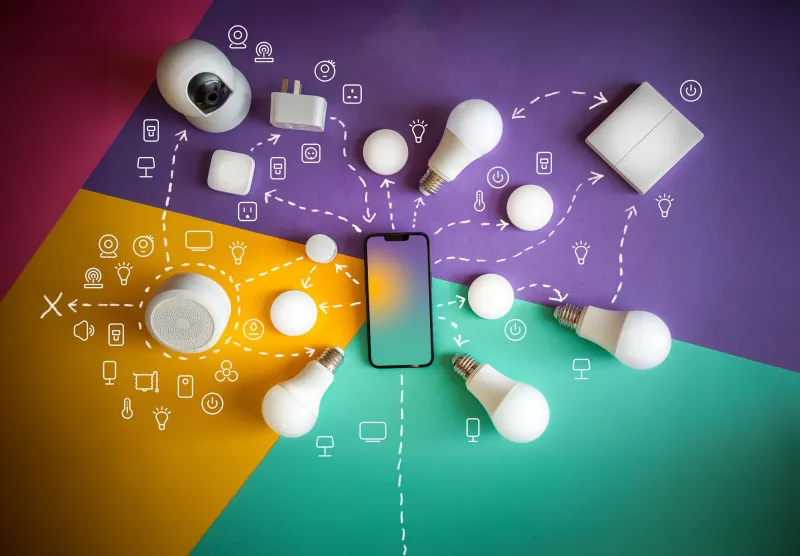
Unlock Your Phone's Full Potential: The System Settings Most Users Never Find
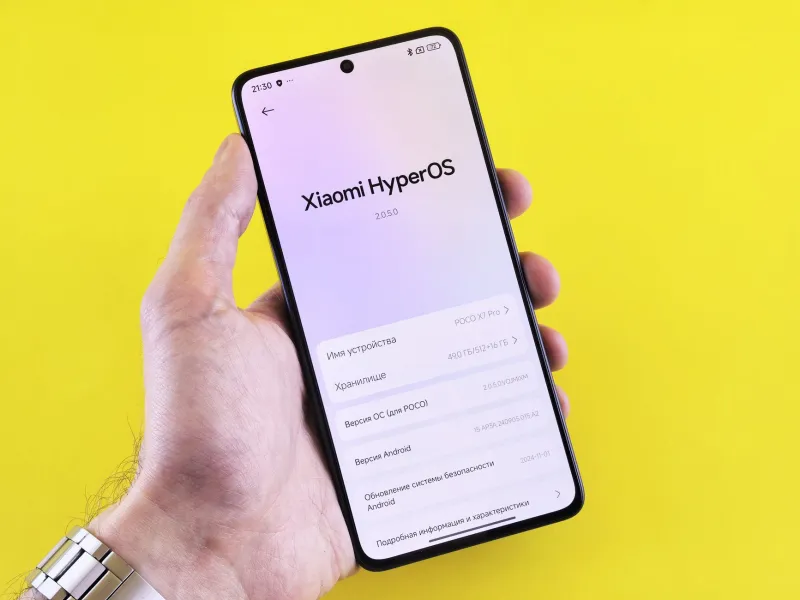
Unlock Your Phone's Full Potential: The System Settings Most Users Never Find
Most Americans upgrade their smartphones every two to three years, often citing sluggishness, limited features, or the appeal of something newer. What the marketing rarely mentions is that your current device — whether it runs iOS or Android — is already carrying a suite of advanced capabilities that the average user never encounters. These aren't obscure hacks or workarounds. They are legitimate, manufacturer-supported settings that sit quietly beneath the surface of the default interface, waiting to be discovered.
This guide is designed to change that. Below, you will find a curated walkthrough of the most impactful hidden or underutilized system settings on both platforms, complete with navigation paths, plain-language explanations, and practical reasons to enable each one.
Why These Settings Stay Hidden in the First Place
There is a reasonable explanation for why these options are buried. Apple and Google design their default experiences for the broadest possible audience — meaning the out-of-the-box setup prioritizes simplicity over depth. Features that could confuse a first-time smartphone user get tucked into secondary menus or disabled entirely until the user opts in. The result is that even experienced users often spend years with a phone configured far below its actual capability ceiling.
None of the settings in this guide require technical expertise. They simply require knowing where to look.
iOS: Settings Apple Doesn't Advertise at Setup
Back Tap — A Hidden Shortcut on the Back of Your iPhone
Available on iPhone 8 and later running iOS 14 or higher, Back Tap lets you assign actions to a double or triple tap on the back glass of your device. Navigate to Settings → Accessibility → Touch → Back Tap to configure it.
You can assign functions ranging from taking a screenshot to triggering a Shortcut you've built yourself. Power users frequently map Back Tap to open the camera, toggle the flashlight, or scroll to the top of a page. It sounds minor until you start using it — at which point it becomes one of the most intuitive gestures on the device.
Reduce Motion and Custom Transparency — Reclaim Speed and Clarity
Located under Settings → Accessibility → Motion, the Reduce Motion toggle eliminates the parallax effect and replaces sliding animations with simpler crossfades. On older iPhones, this alone can make the interface feel meaningfully snappier. On newer models, it simply removes visual noise you may not have realized was slowing your perception of transitions.
Pair this with Settings → Accessibility → Display & Text Size → Reduce Transparency, which replaces frosted-glass UI elements with solid colors. The result is a cleaner, higher-contrast interface that many users find easier to parse at a glance.
Announce Notifications with Siri — Hands-Free Awareness
Under Settings → Siri & Search → Announce Notifications, you can configure Siri to read incoming alerts aloud through your AirPods or compatible Bluetooth headphones. This is particularly useful during commutes or workouts. The feature supports smart reply suggestions and allows you to respond without touching your phone — a genuinely practical tool that most users never enable because it isn't surfaced during initial setup.
Customizing Your Focus Filters
Focus modes, introduced in iOS 15, go well beyond simple Do Not Disturb. Under Settings → Focus, each mode can be configured with custom Home Screen pages, allowed contacts, app filters, and even Lock Screen layouts. A properly configured Work Focus, for instance, can hide social media apps entirely during business hours while surfacing only productivity tools — effectively turning one phone into two distinct experiences depending on context.
Android: The Settings Drawer That Changes Everything
Developer Options — More Useful Than the Name Suggests
Android's Developer Options menu is not, despite its label, reserved for software engineers. To unlock it, go to Settings → About Phone → Software Information and tap Build Number seven times in succession. A confirmation message will indicate that Developer Options have been enabled; the menu will then appear in your main Settings list.
Once inside, two settings stand out for everyday users:
- Window Animation Scale, Transition Animation Scale, and Animator Duration Scale: Setting all three to 0.5x makes every system animation twice as fast, giving the phone a noticeably more responsive feel without changing any underlying performance metrics.
- Wireless Debugging: Allows you to connect your device to a computer for file transfers and diagnostics without a USB cable — a practical utility for users who frequently move data between devices.
Digital Wellbeing's Hidden Dashboard
Most Android users are aware that Digital Wellbeing exists. Far fewer have explored it thoroughly. Under Settings → Digital Wellbeing & Parental Controls, you will find a granular breakdown of your daily app usage, the ability to set per-app timers, and — importantly — a Bedtime Mode that can automatically enable grayscale display and Do Not Disturb on a set schedule. Grayscale mode, in particular, is worth trying: research from behavioral scientists suggests that removing color from the display reduces the dopamine-driven appeal of social media apps, helping users engage more intentionally with their phones.
One-Handed Mode
As screen sizes have grown, reaching the top of the display with one hand has become genuinely awkward for many users. On stock Android (and most manufacturer skins), Settings → System → Gestures → One-Handed Mode enables a feature that shrinks the active display area downward when triggered. Samsung users will find a similar option under Advanced Features. It is an underused solution to a physical usability problem that no hardware upgrade actually resolves.
Notification History — Recover What You Accidentally Dismissed
Android maintains a log of your recent notifications even after you've cleared them. To access it, go to Settings → Notifications → Notification History and toggle it on. From that point forward, you can review dismissed alerts for up to 24 hours — a practical safeguard for anyone who has ever swiped away a message or alert they immediately needed to find again.
The Broader Principle: Configuration Over Consumption
The common thread running through every setting above is that meaningful improvement rarely requires spending money. The instinct to upgrade — to buy the next model, download a premium app, or subscribe to a service — is understandable, but it often bypasses the simpler truth: most devices are configured for the median user, not the informed one.
Taking thirty minutes to explore your phone's system settings with genuine curiosity will, in most cases, yield a more personalized and capable experience than any hardware refresh. SmartGuide's consistent recommendation is to audit your tools before replacing them. Your phone, as it turns out, has been waiting for you to ask more of it.
All settings referenced in this guide apply to iOS 17 and Android 14 as of publication. Menu paths may vary slightly depending on your device manufacturer or carrier.
 Photo: Eiffel Tower, via c8.alamy.com